Image Compressor Online
Compress JPG, PNG and WebP images online for free. Reduce image file size, resize large photos and download a smaller image directly from your browser without uploading your file to a server.

Free Image Compressor
Select an image, choose output format, quality and optional max dimensions. The compression runs in your browser for fast and private processing.
Quick Answer: How to Compress an Image Online
Upload a JPG, PNG or WebP image, select the output format, adjust the quality slider, resize large dimensions if needed, then click compress. Download the smaller image file when the preview appears.
What Is an Image Compressor?
An image compressor is a tool that reduces image file size so photos and graphics load faster, upload more easily and take less storage space. Large images can slow down websites, emails, forms and social media uploads. A compressor helps make the file smaller while keeping the image visually clear enough for everyday use.
This online image compressor works in your browser using HTML canvas technology. That means your selected image is processed locally on your device instead of being uploaded to a server. It is useful for quick compression when you want to reduce a JPG, PNG or WebP image before using it on a website, blog, online form, email or social media post.
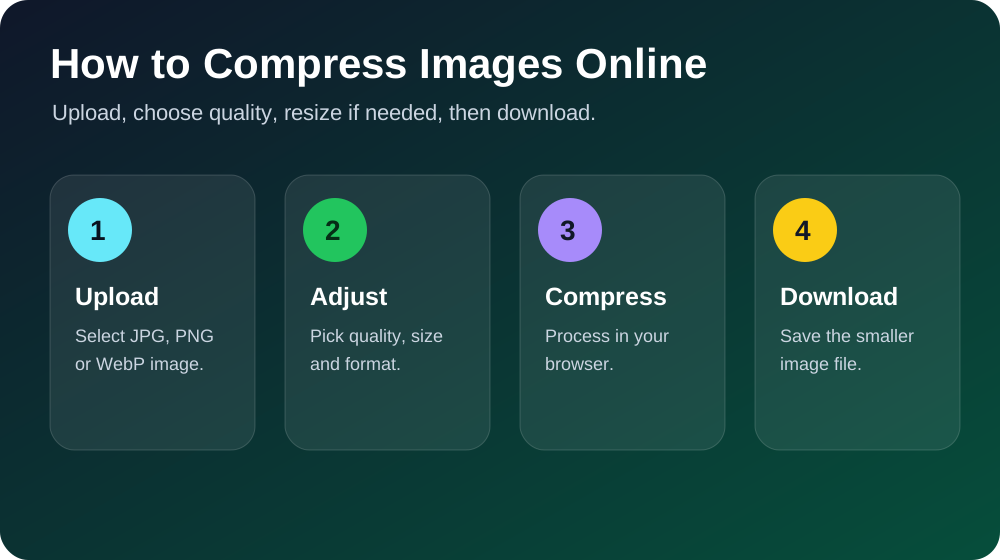
Compress JPG, PNG and WebP Images
Different image formats behave differently. JPG is usually best for photos because it can reduce file size heavily with adjustable quality. PNG is useful for graphics, screenshots and images with transparency, but it may not compress as much as JPG. WebP often gives strong compression with good quality and is useful for modern websites.
Use the output format option to choose the best format for your task. If you need a smaller website image, try WebP or JPG. If you need transparency, use PNG, but remember that PNG files can remain larger.
Reduce Image Size Without Losing Too Much Quality
Compression is about balance. Lower quality usually means smaller file size, but it can also reduce sharpness. For most web and social media images, a quality setting between 60% and 80% works well. If the image is still too large, reduce the max width as well. Resizing a 4000px photo down to 1600px or 1200px can make a huge difference.
Compress Image to a Target KB Size
If you need an image under a certain file size, enter a target KB value. The tool will try to find a smaller quality setting close to that target. Exact results can vary depending on the image format, dimensions and visual details, but it can help when a website or form has an upload size limit.
Websites
Reduce large images so web pages load faster and feel smoother.
Forms
Compress photos before uploading to online applications or portals.
Social Media
Create smaller files for posts, thumbnails, banners and profile images.
Why Image Compression Matters
Large images can make pages slow, increase data usage and cause upload errors. A smaller image is easier to share and better for website performance. For bloggers, business owners, students and designers, image compression is one of the simplest ways to save time and improve user experience.
Related Free Tools
Frequently Asked Questions
Is this image compressor free?
Yes, this image compressor is free to use and works directly in your browser.
Can I compress JPG images?
Yes. You can upload JPG images and reduce their file size by adjusting the quality and max width settings.
Can I compress PNG images?
Yes. PNG images are supported. However, PNG compression may not reduce file size as much as JPG or WebP for photos.
Does this tool upload my image?
No. The compression runs locally in your browser using canvas processing.
What quality should I choose?
For most web images, 60% to 80% quality gives a good balance between smaller file size and visual clarity.
Final Thoughts
Use this Image Compressor Online tool whenever you need to reduce image size, compress JPG, compress PNG, create WebP files or make photos easier to upload. Choose the right format, adjust the quality, resize large images and download the compressed result instantly.